
ECS Fargate Deployment: Python Hello World Application
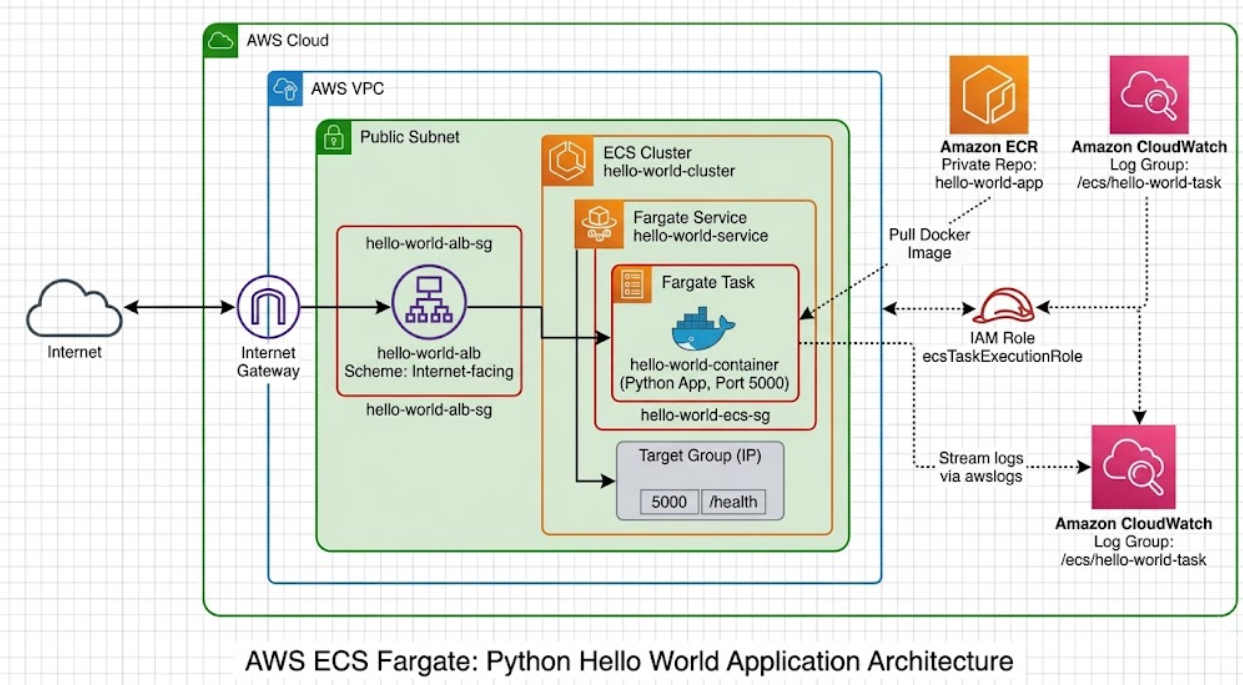
ECS Fargate Deployment: Python Hello World Application
This guide walks you through deploying a simple Python "Hello World" web application on AWS ECS Fargate — from writing the app to accessing it via a public URL.
Architecture Overview
                    Internet
                       |
              [Application Load Balancer]
                       |
                  [ECS Service]
                       |
              [Fargate Task(s)]
                       |
              [Python Container]
                (hello-world-app)
What is ECS Fargate?
- ECS (Elastic Container Service) runs Docker containers on AWS
- Fargate is the serverless compute engine — no EC2 instances to manage
- You define what container to run, and AWS handles the infrastructure
Prerequisites
- AWS account with admin access
- AWS CLI installed and configured (
aws configure) - Docker installed locally
- A terminal (Linux/Mac/WSL)
Step 1: Create the Python Application
Create a project directory:
mkdir hello-world-ecs && cd hello-world-ecs
app.py
from flask import Flask

app = Flask(__name__)

@app.route("/")
def hello():
    return "Hello World from ECS Fargate!"

@app.route("/health")
def health():
    return "OK", 200

if __name__ == "__main__":
    app.run(host="0.0.0.0", port=5000)
requirements.txt
flask==3.1.0
Step 2: Create the Dockerfile
Dockerfile
FROM python:3.12-slim

WORKDIR /app

COPY requirements.txt .
RUN pip install --no-cache-dir -r requirements.txt

COPY app.py .

EXPOSE 5000

CMD ["python", "app.py"]
Test locally (optional)
docker build -t hello-world-app .
docker run -p 5000:5000 hello-world-app
# Visit http://localhost:5000 — should see "Hello World from ECS Fargate!"
# Ctrl+C to stop
Step 3: Create an ECR Repository
ECR (Elastic Container Registry) stores your Docker image so ECS can pull it.
- Go to Amazon ECR Console → Repositories → Create repository
- Fill in:
- Visibility: Private
- Repository name:
hello-world-app
- Click Create repository
Or via CLI:
aws ecr create-repository --repository-name hello-world-app --region us-east-1
Step 4: Push Docker Image to ECR
- Authenticate Docker to ECR:
aws ecr get-login-password --region us-east-1 | docker login --username AWS --password-stdin <AWS_ACCOUNT_ID>.dkr.ecr.us-east-1.amazonaws.com
Replace
<AWS_ACCOUNT_ID>with your 12-digit AWS account ID.
- Tag the image:
docker tag hello-world-app:latest <AWS_ACCOUNT_ID>.dkr.ecr.us-east-1.amazonaws.com/hello-world-app:latest
- Push the image:
docker push <AWS_ACCOUNT_ID>.dkr.ecr.us-east-1.amazonaws.com/hello-world-app:latest
- Verify in the ECR console — you should see the
latesttag under your repository.
Step 5: Create an ECS Cluster
- Go to ECS Console → Clusters → Create cluster
- Fill in:
- Cluster name:
hello-world-cluster - Infrastructure: Select AWS Fargate (serverless) only (uncheck EC2 if checked)
- Cluster name:
- Click Create
Step 6: Create a Task Execution Role
ECS needs an IAM role to pull images from ECR and write logs.
- Go to IAM Console → Roles → Create role
- Trusted entity type: AWS service
- Use case: Select Elastic Container Service → Elastic Container Service Task
- Click Next
- Attach policy: Search and select
AmazonECSTaskExecutionRolePolicy - Click Next
- Role name:
ecsTaskExecutionRole - Click Create role
If
ecsTaskExecutionRolealready exists in your account, skip this step.
Step 7: Create a Task Definition
The task definition tells ECS what container to run and how.
Go to ECS Console → Task definitions → Create new task definition
Fill in:
Task definition family:
hello-world-taskInfrastructure requirements:
- Launch type: AWS Fargate
- Operating system/Architecture: Linux/X86_64
- CPU: 0.25 vCPU
- Memory: 0.5 GB
- Task execution role: Select
ecsTaskExecutionRole
Container - 1:
- Name:
hello-world-container - Image URI:
<AWS_ACCOUNT_ID>.dkr.ecr.us-east-1.amazonaws.com/hello-world-app:latest - Container port:
5000 - Protocol: TCP
- Port name:
hello-world-port(or leave auto-generated)
- Name:
Expand Logging (should be enabled by default with
awslogs):- Log group:
/ecs/hello-world-task(auto-created)
- Log group:
Click Create
Step 8: Create a Security Group for the Service
- Go to VPC Console → Security Groups → Create security group
- Fill in:
- Name:
hello-world-ecs-sg - Description:
Allow HTTP traffic to ECS tasks - VPC: Select your default VPC
- Name:
- Inbound rules → Add rule:
- Type: Custom TCP
- Port range:
5000 - Source:
0.0.0.0/0(allows public access)
- Outbound rules: Leave default (all traffic allowed)
- Click Create security group
Step 9: Create the ECS Service
The service keeps your task running and connects it to networking.
Go to ECS Console → Clusters → Select
hello-world-clusterUnder Services tab → Click Create
Fill in:
Environment:
- Compute options: Launch type
- Launch type: FARGATE
Deployment configuration:
- Application type: Service
- Task definition family:
hello-world-task - Revision: LATEST
- Service name:
hello-world-service - Desired tasks:
1
Expand Networking:
- VPC: Select your default VPC
- Subnets: Select at least one public subnet
- Security group: Remove default, select
hello-world-ecs-sg - Public IP: Turned on (required for Fargate tasks in public subnets to pull images)
Click Create
Step 10: Access Your Application
- Go to ECS Console → Clusters →
hello-world-cluster→ Services →hello-world-service - Click the Tasks tab
- Click the running task ID
- Under Configuration, find the Public IP
- Open in browser:
http://<TASK_PUBLIC_IP>:5000
You should see: Hello World from ECS Fargate!
(Optional) Step 11: Add an Application Load Balancer
For production use, add an ALB for a stable DNS endpoint and health checks.
Create a Target Group
- Go to EC2 Console → Target Groups → Create target group
- Fill in:
- Target type: IP addresses
- Name:
hello-world-tg - Protocol: HTTP
- Port:
5000 - VPC: Default VPC
- Health check path:
/health
- Click Next → Create target group (don't register targets manually — ECS does this)
Create the ALB
- Go to EC2 Console → Load Balancers → Create load balancer
- Select Application Load Balancer → Create
- Fill in:
- Name:
hello-world-alb - Scheme: Internet-facing
- IP address type: IPv4
- VPC: Default VPC
- Mappings: Select at least 2 availability zones
- Security group: Create or select one allowing HTTP port 80 inbound
- Listener: HTTP : 80 → Forward to
hello-world-tg
- Name:
- Click Create load balancer
Update the ECS Service
- Go to ECS Console →
hello-world-cluster→hello-world-service→ Update - Under Load balancing:
- Load balancer type: Application Load Balancer
- Load balancer:
hello-world-alb - Container:
hello-world-container : 5000 - Target group:
hello-world-tg
- Click Update
Now access your app via the ALB DNS name (found in the Load Balancer details):
http://hello-world-alb-xxxxxxxx.us-east-1.elb.amazonaws.com
Viewing Logs
- Go to CloudWatch Console → Log groups →
/ecs/hello-world-task - Click the latest log stream to see Flask output
Or via CLI:
aws logs tail /ecs/hello-world-task --follow
Quick Verification Checklist
- Python app runs locally with Docker on port 5000
- Docker image pushed to ECR repository
hello-world-app - ECS cluster
hello-world-clustercreated (Fargate) - Task execution role
ecsTaskExecutionRoleexists with correct policy - Task definition
hello-world-taskcreated with correct image URI and port - Security group allows inbound TCP on port 5000
- ECS service running with 1 desired task
- Task has a public IP and app is accessible at
http://<IP>:5000 - (Optional) ALB forwards port 80 to target group on port 5000
Cleanup
Delete in this order:
- ECS Service: Set desired tasks to 0, then delete the service
- ECS Cluster: Delete
hello-world-cluster - Task Definition: Deregister
hello-world-task - ECR Repository: Delete
hello-world-app(and its images) - Load Balancer: Delete
hello-world-alb(if created) - Target Group: Delete
hello-world-tg(if created) - Security Group: Delete
hello-world-ecs-sg - IAM Role: Keep
ecsTaskExecutionRole(reusable) or delete if no longer needed - CloudWatch Log Group: Delete
/ecs/hello-world-task
Common Troubleshooting
| Issue | Solution |
|---|---|
| Task keeps stopping | Check CloudWatch logs for Python errors; verify image URI is correct |
| Can't pull image from ECR | Ensure task execution role has AmazonECSTaskExecutionRolePolicy; verify public IP is enabled |
| Health check failing | Confirm /health endpoint returns 200; check security group allows traffic on port 5000 |
| Can't access public IP | Verify security group inbound rule; ensure task is in a public subnet with public IP enabled |
| ALB returns 502 | Target group health check failing; check port mapping matches (5000) |